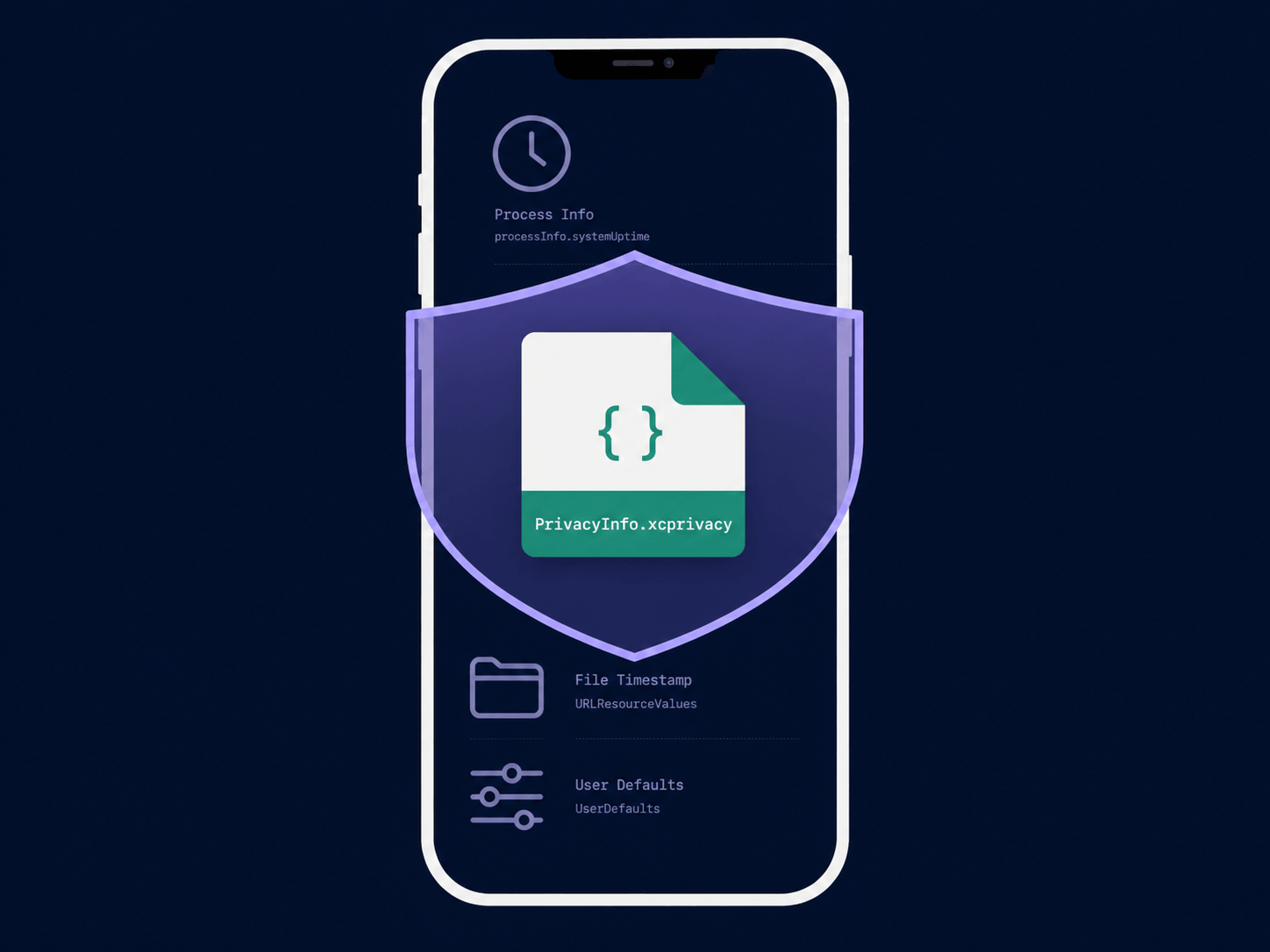
If your app was rejected after May 1 with a cryptic ITMS-91053 or ITMS-91055 error, you’ve landed in the right place. Apple now requires every app – and every third-party SDK your app bundles – to include a privacy manifest file [Ref-1]. Miss it, and your submission is blocked. This checklist walks you through exactly what a privacy manifest is, which APIs require a reason declaration, and how to get your app compliant before you hit Submit.
What Is a Privacy Manifest?
The PrivacyInfo.xcprivacy File Explained
A privacy manifest is a structured declaration of intent. It tells Apple – and your users – exactly which sensitive system APIs your app touches and why [Ref-2]. The manifest lives in a file named PrivacyInfo.xcprivacy, added directly to your app target. It follows the same property list format as your familiar Info.plist, so the structure will feel immediately recognisable.
Think of it as a nutrition label for your app’s data behaviour. Just as a food label tells consumers what’s inside a product, PrivacyInfo.xcprivacy tells Apple what system resources your app is accessing and for what purpose. Simple idea – but the details matter.
What It Contains
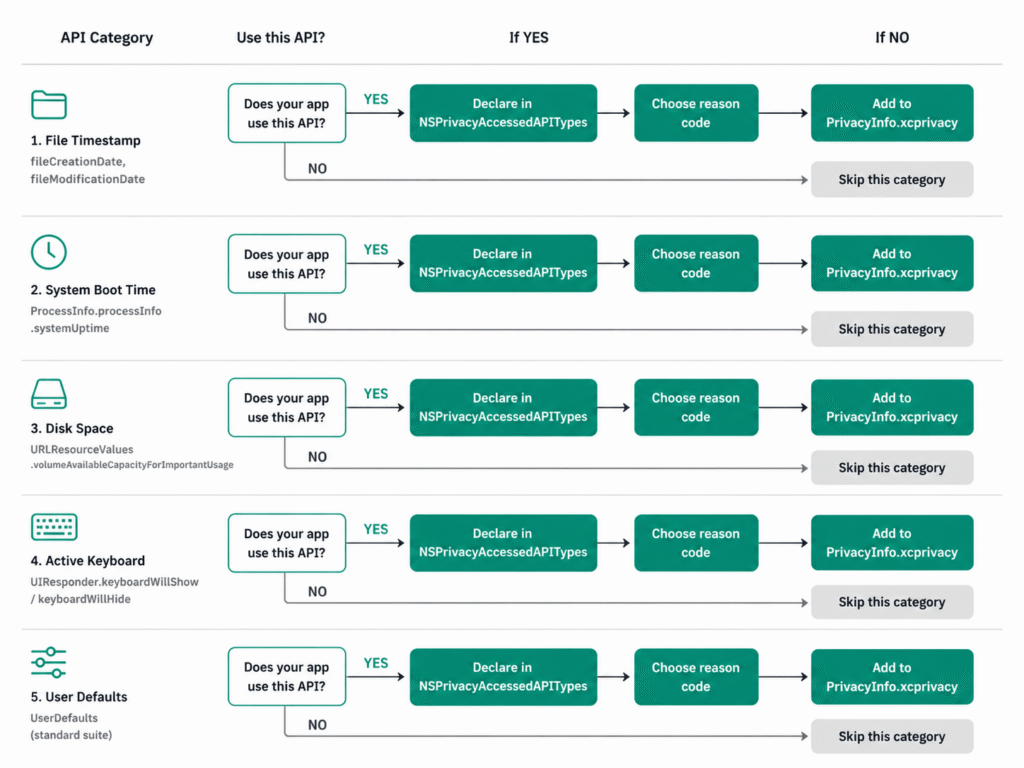
A PrivacyInfo.xcprivacy file supports four top-level keys:
NSPrivacyTracking– A boolean. Set totrueonly if your app uses data for tracking under the App Tracking Transparency framework [Ref-3].NSPrivacyTrackingDomains– An array of domain strings your app connects to specifically for tracking purposes.NSPrivacyCollectedDataTypes– Describes categories of data your app collects, how each is used, and whether it is linked to the user’s identity. For a deep dive on how this feeds your App Store listing, see our guide on how to fill in your App Store Privacy Nutrition Labels accurately.NSPrivacyAccessedAPITypes– The key that causes most App Store rejections. An array of dictionaries declaring which required reason APIs your app uses and the specific reason why [Ref-4].
Most apps that aren’t ad-driven can safely leave NSPrivacyTracking as false and NSPrivacyTrackingDomains as an empty array. But NSPrivacyAccessedAPITypes – that’s where almost every developer gets tripped up. Let’s look at why.
<?xml version="1.0" encoding="UTF-8"?>
<!DOCTYPE plist PUBLIC "-//Apple//DTD PLIST 1.0//EN"
    "http://www.apple.com/DTDs/PropertyList-1.0.dtd">
<plist version="1.0">
<dict>
    <key>NSPrivacyTracking</key>
    <false/>
    <key>NSPrivacyTrackingDomains</key>
    <array/>
    <key>NSPrivacyCollectedDataTypes</key>
    <array/>
    <key>NSPrivacyAccessedAPITypes</key>
    <array>
        <!-- Your required reasons API entries go here -->
    </array>
</dict>
</plist>
Why Apple Introduced This Requirement
Third-Party SDK Accountability
Here’s something I’ve found consistently true across many years of shipping apps: most developers have no idea what their third-party SDKs are doing under the hood. Analytics SDKs, crash reporters, ad networks – they all call system APIs silently, without any visibility at the app layer. You trust the SDK, add the dependency, and move on.
Apple noticed this too. Privacy manifests exist specifically to close that gap. Apple’s position is clear: you are responsible for all code running inside your app binary, including code from third-party libraries you didn’t write [Ref-5]. The manifest requirement forces both you and your SDK vendors to be explicit about API usage – rather than letting it happen quietly in the background.
The App Store Review Impact
Starting May 1, 2024, Apple made enforcement mandatory [Ref-5]. If your app – or any newly integrated third-party SDK on Apple’s commonly-used list – calls required reason APIs without declaring them in a privacy manifest, your submission is rejected outright. No warnings, no grace period. Just a rejection email with ITMS-91053 or ITMS-91055 error codes identifying the undeclared APIs.
The silver lining: Apple’s rejection email includes a list of the specific APIs that triggered the issue. That email is actually a useful starting checklist. But waiting for a rejection to drive your compliance workflow isn’t a great strategy – it blocks your release and creates unnecessary back-and-forth with App Store review. It’s better to get ahead of it now.
Required Reasons APIs – The Full Checklist
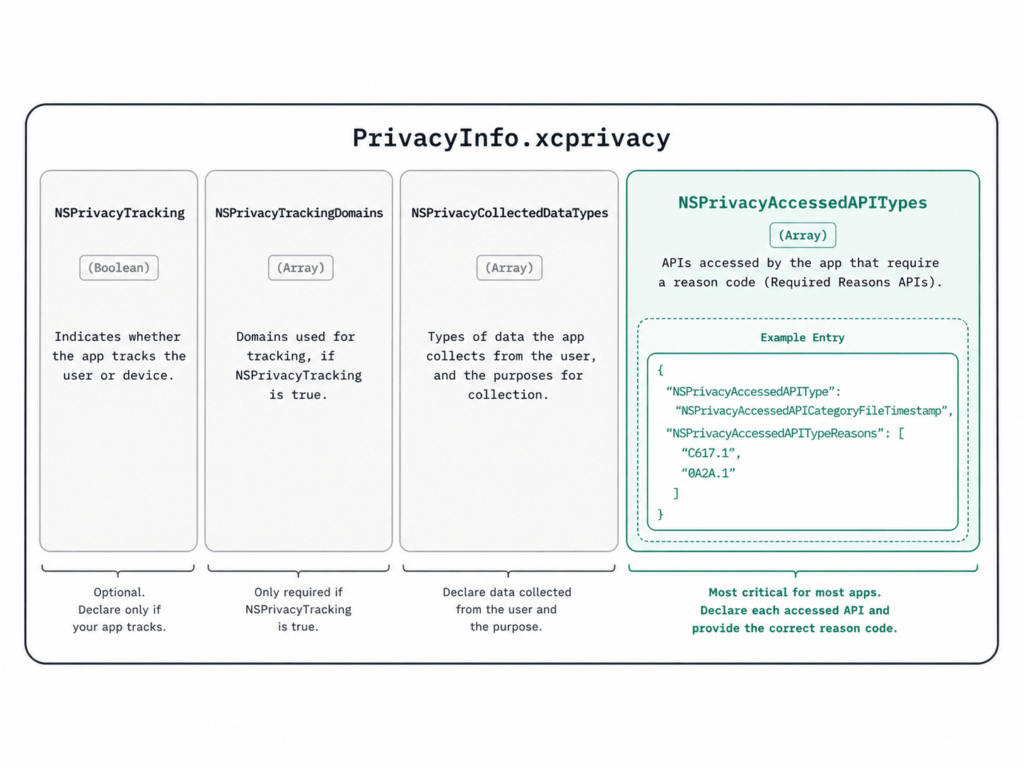
Apple currently defines five categories of required reasons APIs [Ref-4]. If your app, or any SDK it bundles, accesses these APIs, you must declare it in NSPrivacyAccessedAPITypes with a matching reason code.
Here’s something I wish I’d known before my first rejection: the problem usually isn’t that you’re doing anything wrong – it’s that you’re using APIs that have always worked and never needed to be declared before. UserDefaults and mach_absolute_time() are the two that catch almost every developer the first time. Let’s go through all five so you’re covered.
1. File Timestamp APIs
Category key: NSPrivacyAccessedAPICategoryFileTimestamp
APIs covered include creationDate, modificationDate, fileModificationDate, getattrlist(), and getattrlistat() [Ref-4]. Most apps encounter this one through file management features, document browsers, or SDKs that read file metadata under the hood.
| Reason Code | When to Use |
|---|---|
DDA9.1 | Displaying timestamps to the user only – data stays on-device |
C617.1 | Reading metadata of files in app container, app group, or CloudKit |
3B52.1 | Files explicitly granted access by the user via a document picker |
0A2A.1 | Third-party SDK wrapping file timestamp APIs (SDKs only) |
2. System Boot Time APIs
Category key: NSPrivacyAccessedAPICategorySystemBootTime
APIs covered: systemUptime, mach_absolute_time() [Ref-4]. These are commonly used for measuring elapsed time between app events, enabling timer-based features, or calculating absolute timestamps for UIKit and AVFAudio events. If you’re doing any timing work, check for this one.
| Reason Code | When to Use |
|---|---|
35F9.1 | Measuring elapsed time between in-app events – data stays on-device |
8FFB.1 | Calculating absolute timestamps that can be sent off-device |
3D61.1 | Including boot time in an optional, user-submitted bug report |
3. Disk Space APIs
Category key: NSPrivacyAccessedAPICategoryDiskSpace
APIs covered: volumeAvailableCapacityKey, volumeTotalCapacityKey, systemFreeSize, statfs(), and related calls [Ref-4]. If your app checks available storage before initiating a download or triggers cleanup based on disk pressure, you’ll need this one declared.
| Reason Code | When to Use |
|---|---|
85F4.1 | Displaying disk space information to the user – display only |
E174.1 | Checking available space before writing files, or triggering cleanup |
7D9E.1 | Including disk space info in an optional user-submitted bug report |
B728.1 | Health research apps detecting low disk space impacting data collection |
4. Active Keyboard APIs
Category key: NSPrivacyAccessedAPICategoryActiveKeyboards
APIs covered: activeInputModes [Ref-4]. This one catches custom keyboard apps and apps that adapt their UI based on the user’s current keyboard language or layout. It’s a narrower use case, but easy to miss if your app does any keyboard-aware UI work.
| Reason Code | When to Use |
|---|---|
3EC4.1 | Custom keyboard app determining which keyboards are active |
54BD.1 | App adapting its UI based on the active keyboard in a user-visible way |
5. User Defaults APIs
Category key: NSPrivacyAccessedAPICategoryUserDefaults
APIs covered: the entire UserDefaults class [Ref-4]. This is the one that catches almost everyone – UserDefaults is everywhere. Simple preference flags, feature toggles, shared app group data, SDK internal settings – it’s all UserDefaults. If your app uses UserDefaults at all (and it almost certainly does), you need this entry. Don’t skip it.
| Reason Code | When to Use |
|---|---|
CA92.1 | Accessing user defaults from within the app itself |
1C8F.1 | Accessing shared defaults from an app group container |
C56D.1 | Third-party SDK accessing user defaults only when app calls the SDK’s API |
AC6B.1 | Health research app recording measurements from a health research sensor |
Here’s a complete example declaring multiple categories – copy this as your starting point and trim what you don’t need:
<key>NSPrivacyAccessedAPITypes</key>
<array>
    <dict>
        <key>NSPrivacyAccessedAPIType</key>
        <string>NSPrivacyAccessedAPICategoryUserDefaults</string>
        <key>NSPrivacyAccessedAPITypeReasons</key>
        <array>
            <string>CA92.1</string>
        </array>
    </dict>
    <dict>
        <key>NSPrivacyAccessedAPIType</key>
        <string>NSPrivacyAccessedAPICategoryFileTimestamp</string>
        <key>NSPrivacyAccessedAPITypeReasons</key>
        <array>
            <string>C617.1</string>
        </array>
    </dict>
    <dict>
        <key>NSPrivacyAccessedAPIType</key>
        <string>NSPrivacyAccessedAPICategorySystemBootTime</string>
        <key>NSPrivacyAccessedAPITypeReasons</key>
        <array>
            <string>35F9.1</string>
        </array>
    </dict>
    <dict>
        <key>NSPrivacyAccessedAPIType</key>
        <string>NSPrivacyAccessedAPICategoryDiskSpace</string>
        <key>NSPrivacyAccessedAPITypeReasons</key>
        <array>
            <string>E174.1</string>
        </array>
    </dict>
</array>
Important: Only declare the categories your app actually uses. Don’t copy all entries by default – that misrepresents your app’s behaviour to Apple.
How to Add a Privacy Manifest to Your App
Now that you know what to declare, let’s set it up. This is a one-time process and takes under ten minutes.
Creating PrivacyInfo.xcprivacy in Xcode
The full workflow in Xcode 15 or later [Ref-6]:
- Go to File → New → File.
- In the search bar, type
App Privacy– or scroll to the Resource section. - Select App Privacy and click Next.
- Name it
PrivacyInfo(Xcode automatically appends.xcprivacy). - Critical step: Before clicking Create, ensure your app target is checked in the Targets section. A manifest that isn’t linked to a target does nothing.
Xcode opens the file with a visual property list editor. You can also right-click → Open As → Source Code to edit the raw XML directly, which is often faster once you know the structure.
Here’s a minimal starter file – declare only UserDefaults to begin, then add further categories as needed:
<?xml version="1.0" encoding="UTF-8"?>
<!DOCTYPE plist PUBLIC "-//Apple//DTD PLIST 1.0//EN"
    "http://www.apple.com/DTDs/PropertyList-1.0.dtd">
<plist version="1.0">
<dict>
    <key>NSPrivacyTracking</key>
    <false/>
    <key>NSPrivacyTrackingDomains</key>
    <array/>
    <key>NSPrivacyCollectedDataTypes</key>
    <array/>
    <key>NSPrivacyAccessedAPITypes</key>
    <array>
        <dict>
            <key>NSPrivacyAccessedAPIType</key>
            <string>NSPrivacyAccessedAPICategoryUserDefaults</string>
            <key>NSPrivacyAccessedAPITypeReasons</key>
            <array>
                <string>CA92.1</string>
            </array>
        </dict>
    </array>
</dict>
</plist>
Declaring API Usage with the Correct Reason Codes
With the file created, adding entries is straightforward. For each API category your app uses:
- Click
+next to App Privacy Configuration in the visual editor. - Add Privacy Accessed API Types as the key.
- Inside it, create a new dictionary entry with two keys:
NSPrivacyAccessedAPIType(the category string) andNSPrivacyAccessedAPITypeReasons(an array of reason code strings).
The reason codes matter more than you might expect. Read each description carefully [Ref-4]. Select the code that most accurately reflects your actual usage – not the most permissive option available. This is a declaration of intent, not a permission slip.
A Note on App Extensions
Every binary in your app bundle requires its own privacy manifest [Ref-2]. A Widget Extension, a Share Extension, a Notification Service Extension – each one needs its own PrivacyInfo.xcprivacy file that declares only the APIs that specific binary accesses. You cannot consolidate all extension manifests into the main app target’s file. It’s extra work up front, but it’s a one-time task.
Third-Party SDKs and Privacy Manifests
Your own code is only half the picture. Let’s talk about the dependencies you’re bringing in.
Which SDKs Now Require Their Own Manifest
Apple maintains a list of commonly used third-party SDKs that must ship with both a privacy manifest and a valid code signature [Ref-7]. Major SDKs – Firebase, Amplitude, and many others – have already updated their packages to include compliant manifests. The safest action is always to update to the latest release of any SDK before submitting.
When you integrate these SDKs, Xcode automatically merges their privacy manifests into a combined Privacy Report [Ref-2]. You can generate this via Product → Privacy Report in Xcode – it produces a PDF that mirrors the format of App Store Privacy Nutrition Labels and gives you a clear view of what your entire app bundle is declaring.
How to Verify SDK Compliance Before Submission
Before archiving and submitting, run through this for every third-party SDK you include:
- Swift Package dependencies: Check the package repository for a
PrivacyInfo.xcprivacyfile at the root or inside the sources directory. - CocoaPods: Look inside
Pods/[SDKName]/afterpod install. - XCFrameworks: The manifest must be bundled inside the framework itself.
- Generate a Privacy Report: Run Product → Privacy Report in Xcode. Any SDK missing a manifest will not appear in the report – treat that as an immediate red flag.
I’ve seen cases where a static CocoaPod doesn’t correctly bundle its manifest due to Xcode’s handling of static library resources [Ref-8]. In those cases, you may need to manually copy the SDK’s required API declarations into your app’s own PrivacyInfo.xcprivacy. It’s not elegant, but it works and unblocks your submission.
SDKs that bundle Core ML models are an increasingly common source of privacy manifest gaps – the model inference pipeline often touches disk space and file timestamp APIs internally. If your app uses on-device ML, it’s worth reading up on how to test your Core ML models thoroughly before submission to catch any SDK-level issues before they surface in review.
Common Mistakes and How to Avoid Them
These are the patterns that trip up developers most consistently – including me, early on. Learn from them.
Picking the Wrong Reason Code
Reason codes are precise by design [Ref-4]. 35F9.1 for system boot time means you’re measuring elapsed time between events and the data stays on-device. 8FFB.1 means you’re calculating timestamps that can leave the device. Using the wrong code doesn’t just fail review – it misrepresents your app’s actual behaviour to Apple and to your users.
Take ten minutes to read each reason code description for the categories you use. The descriptions are specific enough to guide the right choice without ambiguity.
Declaring APIs You Don’t Actually Use
Don’t copy a PrivacyInfo.xcprivacy sample from the internet and include all five categories by default. If your app has no custom keyboard functionality and never reads activeInputModes, don’t declare NSPrivacyAccessedAPICategoryActiveKeyboards. Declaring unused APIs isn’t a safe hedge – it’s simply inaccurate, and it misrepresents your app.
Forgetting SDK Manifests
If you add a new SDK from Apple’s commonly-used list, that SDK must ship with a compliant privacy manifest and a valid code signature for binary distributions [Ref-7]. Always update your SDKs to their latest versions – most major vendors have already shipped compliant releases. Don’t let an outdated dependency hold up a release.
Ignoring Xcode Warnings
Xcode 15 and later surfaces privacy-related warnings at build time [Ref-6]. If you see anything referencing PrivacyInfo or API access declarations in your build log, treat it with the same urgency as a compiler error. Don’t archive until those are resolved.
Building a habit of catching issues before they reach review is one of the most valuable things a developer can do. The debugging tools that surface hidden issues before App Store submission are worth adding to your regular pre-release workflow.
Final Pre-Submission Checklist
Run through every item below before each App Store submission that touches privacy-sensitive APIs. This takes five minutes and can save you days of review delay.
PrivacyInfo.xcprivacyis added to your app target – Verify the file is linked to the correct target, not just sitting loose in the project navigator.- All required reason API categories are declared – Audit your code and every bundled SDK for calls to
UserDefaults, file timestamp APIs, disk space APIs, system boot time APIs, and active keyboard APIs [Ref-4]. - Reason codes accurately reflect actual usage – Each code should describe what your app genuinely does with the API, not what sounds least restrictive.
- App extensions have their own manifests – Widget Extensions, Share Extensions, Notification Extensions, and other extension targets each need a separate
PrivacyInfo.xcprivacy[Ref-2]. - All third-party SDKs on Apple’s list are updated – Confirm you’re on versions that include compliant manifests and valid code signatures [Ref-7].
- Privacy Report generated and reviewed – Run Product → Privacy Report in Xcode. Check for missing or unexpected entries.
NSPrivacyTrackingis accurate – If your app does not use the ATT framework for tracking, this must befalse[Ref-3].- No declared APIs your app doesn’t actually use – Trim any categories your app doesn’t call.
- Submit to TestFlight first – Apple runs the same privacy manifest validation on TestFlight uploads [Ref-5]. It’s the fastest way to surface ITMS errors before your public release window. Once your manifest is compliant and TestFlight passes, consider how to automate your build and submission pipeline with Xcode Cloud so you never have to run this checklist manually again.
Conclusion
Privacy manifests aren’t the most exciting part of iOS development – I’ll be the first to admit that. But getting them right is one of the most concrete ways to show your users – and Apple – that you take their privacy seriously.
The good news is that this is mostly a one-time investment. Once your PrivacyInfo.xcprivacy is in place and your SDKs are updated, future submissions are routine maintenance: check for newly added API usage, verify reason codes when you integrate a new SDK, regenerate the Privacy Report before every archive.
One more thing worth keeping in mind: Apple has explicitly stated that the list of required reason APIs can expand in future OS releases [Ref-1]. Treating compliance as an ongoing practice – not a single checklist moment – keeps your team ahead of future enforcement cycles without scrambling at submission time.
Privacy manifest compliance is one piece of the submission puzzle. Your users’ trust is worth the ten minutes this setup takes. Ship with confidence.
References
[Ref-1] Apple Developer Documentation – Privacy Manifest Files
[Ref-2] Apple Developer Documentation – Adding a Privacy Manifest to Your App or Third-Party SDK
[Ref-3] Apple Developer Documentation – App Tracking Transparency Framework
[Ref-4] Apple Developer Documentation – Describing Use of Required Reason API
[Ref-5] Apple Developer – Privacy Updates for App Store Submissions
[Ref-6] Apple Developer – WWDC23: Get Started with Privacy Manifests (Session 10060)
[Ref-7] Apple Developer – TN3183: Adding Required Reason API Entries to Your Privacy Manifest
[Ref-8] Apple Developer Forums – How to Declare Privacy Manifest
